Independently controlled left and right audio channels with 11 synthesized drum sounds. Perfect for practicing complex rhythms with distinct downbeat accents.
Visual Feedback System
Glowing beat rings provide instant visual confirmation of tempo. The left ring tracks main beats while the right ring highlights accents - ideal for noisy practice environments.
Flexible Time Signatures
Choose from 1, 2, or 3 beat subdivisions to practice in different meters. Set custom accent intervals (1, 2, 4, 8, 16, or 32 beats) for complex patterns.
⚡ Advanced Tools
Tempo Trainer
Gradually increase BPM from a starting tempo to a target tempo over a set number of bars. Perfect for building speed on difficult passages without conscious tempo changes.
Count-In Function
Set up to 4 bars of count-in before the metronome starts. Gives you time to position your hands and prepare mentally before practicing.
Tap Tempo
Tap the Tap Tempo button 2-4 times at your desired speed. The app calculates and sets the BPM automatically - no need to guess numbers.
Dual Sound Mode
When enabled, accent beats trigger both the main sound AND a separate accent sound simultaneously, creating a layered rhythmic texture.
🎨 Customization
Visual Customization
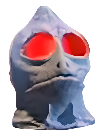
Adjust the Sleestak's skin tone, eye color, and glow intensity. Change ring colors and sizes to match your preference or practice environment.
Sound Selection
Choose from kicks, snares, claps, hi-hats, shakers, and more. Mix and match different sounds for main beats vs. accents to create unique click tracks.
💡 Quick Start
Press START to begin the metronome
Use +/− buttons to adjust BPM
Tap the ⚙ icon to access all settings
Adjust Accent to highlight downbeats (try setting to 4)
Enable Tempo Trainer for gradual speed increases
Use the 🔊 icon to adjust volume
🎯 Practice Tips
Start Slow: Use Tempo Trainer to begin at 60% of target speed and gradually increase over 8-16 bars.
Accent Awareness: Set accent to 4 for 4/4 time signatures to develop strong internal pulse.
Visual Practice: In loud environments, reduce volume and rely on the visual beat rings.
Sound Variety: Change click sounds regularly to prevent ear fatigue during long practice sessions.
👁️ Screen Saver
Alien Morse Code
When enabled in the Eyes settings, a screensaver will activate after a period of inactivity. The Sleestak will attempt to communicate with its home world using its eyes to send random Morse code rescue messages (Left eye = Dash/Long, Right eye = Dot/Short). Moving the mouse or pressing a key will interrupt the transmission and bring back the controls.